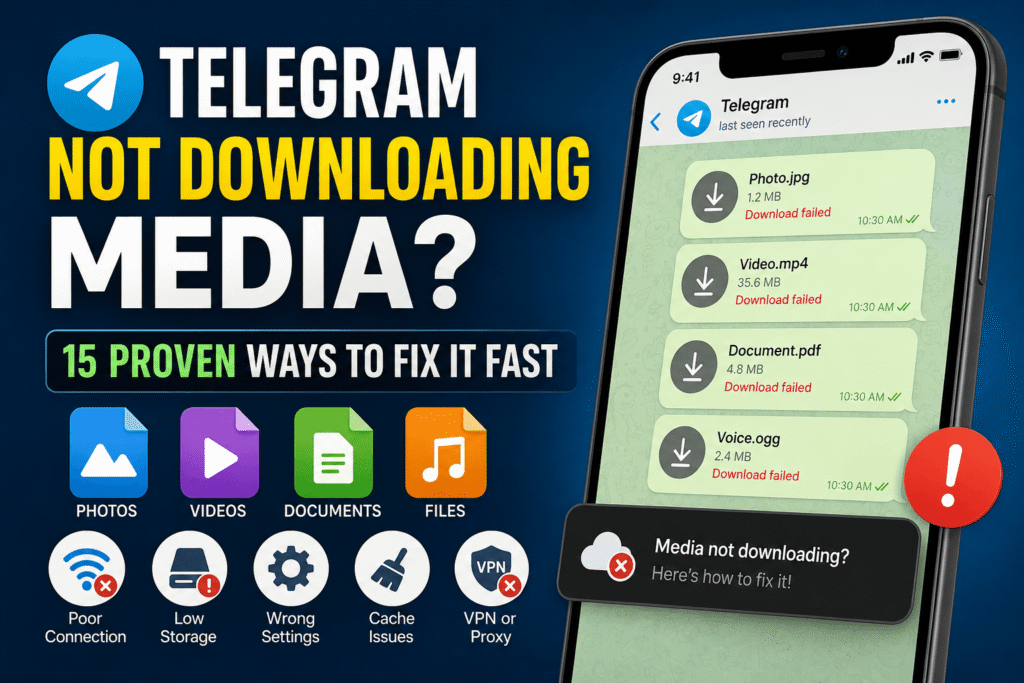

Telegram is one of the most popular messaging platforms for sharing photos, videos, documents, voice messages, and other files. However, users sometimes experience a frustrating problem where media refuses to download. You may tap a photo or video repeatedly, but nothing happens, the download remains stuck, or Telegram shows an error.
If you are facing the Telegram not downloading media problem, there are several possible reasons behind it. A poor internet connection, incorrect download settings, insufficient storage, restricted permissions, outdated software, cache problems, or VPN interference can all prevent media from downloading properly.
The good news is that most of these problems can be fixed without reinstalling the app. This guide explains the most effective solutions for Android, iPhone, and desktop users.
Why Is Telegram Not Downloading Media?
Before trying complicated solutions, it is useful to understand what may be causing the problem. Telegram needs a stable internet connection and sufficient storage space to download media successfully.
Some common causes include:
- Weak or unstable Wi-Fi or mobile data
- Telegram’s automatic media download settings being disabled
- Low device storage
- Data Saver restrictions
- Battery optimization blocking Telegram
- Corrupted Telegram cache
- Outdated Telegram application
- VPN or proxy connection problems
- Restricted app permissions
- Temporary Telegram server problems
- Large files taking longer to download
- Background data restrictions
Identifying the cause can make troubleshooting much faster.
How to Fix Telegram Not Downloading Media
1. Check Your Internet Connection
The first thing you should check is your internet connection. Telegram requires a reliable connection to download media, especially large videos and documents.
Try opening another website or streaming a short video. If other services are also slow, your internet connection may be the problem.
Switch between Wi-Fi and mobile data to determine whether the issue is network-specific. You can also restart your Wi-Fi router or turn airplane mode on for a few seconds before turning it off again.
Try a Different Network
If Telegram works normally on another network, the original Wi-Fi or mobile network may be restricting the connection.
2. Restart Telegram
A temporary application glitch can sometimes stop downloads from working correctly. Completely close Telegram and open it again.
On Android, remove Telegram from the recent apps screen. On iPhone, swipe the application away from the app switcher. Desktop users can close Telegram completely and launch it again.
After restarting, open the conversation and try downloading the media again.
3. Check Telegram’s Automatic Download Settings
Telegram gives users detailed control over which media types can download automatically. If these settings are disabled, photos, videos, or files may not download as expected.
Open Telegram’s settings and find the section related to Data and Storage. Review the automatic media download options for mobile data, Wi-Fi, and roaming.
Make sure the appropriate media categories are enabled.
You can also increase the allowed file size if Telegram is refusing to automatically download larger files.
4. Free Up Storage Space
Insufficient storage is another common reason for download failures. Even if your phone appears to have some free space, the available storage may not be enough for a large video or document.
Check your device’s storage settings and remove unnecessary applications, duplicate photos, old videos, or unused downloads.
After creating enough space, restart Telegram and try again.
Why Storage Matters
Telegram needs space to temporarily process downloaded media before it becomes available on your device. Large videos and files require considerably more storage than ordinary text messages.
5. Clear Telegram Cache
Telegram stores cached photos, videos, and other temporary files to improve performance. Over time, the cache can become very large or occasionally cause unexpected problems.
Telegram includes an option to clear cached media without deleting your conversations.
Open Settings, go to Data and Storage, and find the storage usage section. From there, you can clear unnecessary cached files.
Clearing the cache does not normally remove your cloud-based conversations. Media can generally be downloaded again when needed.
Do Not Confuse Cache With Chat Data
Clearing cache is different from deleting your account or removing important conversations. The purpose of clearing cache is to remove locally stored temporary files and free up space.
6. Check App Permissions
Telegram may need appropriate permissions to save and process media on your device.
On Android, open your phone’s app settings, select Telegram, and review its permissions. On iPhone, check Telegram’s permissions through the system settings.
If access to photos, files, or storage is restricted, downloading or saving media may not work correctly.
Enable the Necessary Permissions
Do not give unnecessary permissions, but make sure Telegram has the access required for the particular media operation you are trying to perform.
7. Disable Data Saver
Data Saver features can restrict background internet activity. This may interfere with Telegram downloads, particularly when the application is not actively open.
Check your phone’s network settings and temporarily disable Data Saver. You can also allow Telegram to use unrestricted data if your device provides that option.
After changing the setting, reopen Telegram and test the download.
8. Disable Battery Optimization for Telegram
Some Android phones aggressively limit background applications to conserve battery. Telegram may be prevented from downloading files when it is running in the background.
Open your battery settings and look for battery optimization or background activity controls. If Telegram is restricted, change its setting so that the application can operate normally.
This can be particularly useful when media downloads stop whenever you leave Telegram.
9. Turn Off VPN or Proxy Temporarily
VPNs and proxy servers can sometimes interfere with Telegram connections. A slow or overloaded VPN server may make downloads extremely slow or cause them to fail completely.
If you are using a VPN, disconnect it temporarily and try downloading the same file.
Telegram also has proxy options within its settings. If a proxy is enabled, temporarily disable it and test your connection.
If the download works afterward, the VPN or proxy was probably contributing to the problem.
10. Update Telegram
Using an outdated version of Telegram can cause compatibility and performance problems.
Open your device’s application store and check whether a newer Telegram version is available. Desktop users should also check for updates within their Telegram application.
Updates can include bug fixes, performance improvements, security patches, and changes that resolve downloading problems.
Why Updating Helps
A media-download problem may result from a software bug that has already been fixed in a newer version. Updating is therefore one of the simplest solutions worth trying.
11. Restart Your Phone or Computer
A complete device restart can resolve temporary network, memory, and application issues.
Restart your phone or computer, wait for the operating system to load completely, and then open Telegram.
This simple step is surprisingly effective when an application has become stuck because of a temporary system process.
12. Check Whether the Problem Affects One File or Everything
Pay attention to the scope of the problem.
If only one particular video or document refuses to download while other media works normally, the problem may be related to that individual file or message.
If every photo, video, and document fails to download, the issue is more likely connected to your network, Telegram settings, permissions, storage, or application installation.
Try downloading a small image first. If that works, test a larger video afterward.
13. Try Telegram Web or Desktop
If mobile Telegram cannot download a particular file, try opening your account on Telegram’s desktop or web version.
This can help determine whether the problem is specific to your phone or account connection.
If the file downloads successfully on another device, focus your troubleshooting on the original device’s settings, storage, permissions, or network connection.
14. Reinstall Telegram as a Last Resort
If none of the previous solutions work, reinstalling Telegram can resolve damaged application files or persistent software problems.
Before reinstalling, make sure you know your login details and have access to the phone number associated with your Telegram account.
Uninstall the application, restart your device, install Telegram again, and sign in.
Most cloud-based chats and media remain associated with your Telegram account, although locally stored files and certain device-specific settings may need to be restored.
Avoid Reinstalling Too Quickly
Reinstallation should generally be one of the final steps. Simple problems such as disabled downloads, low storage, or a restricted connection can often be fixed without removing the application.
15. Check for a Temporary Telegram Service Problem
Sometimes the problem is not caused by your phone or internet connection. Telegram itself can experience temporary service interruptions or technical problems.
If many users are reporting download failures at the same time, waiting may be the only practical solution.
You can test your internet connection and try another application. If everything else works normally but Telegram continues failing across multiple devices, a temporary service-side issue becomes more likely.
Telegram Not Downloading Media on Android
Android users should pay particular attention to storage permissions, background data, battery optimization, and automatic media download settings.
Start by checking your internet connection and available storage. Then review Telegram’s permissions and remove battery or data restrictions.
If the problem continues, clear Telegram’s cache and update the application.
Telegram Not Downloading Media on iPhone
iPhone users should check available storage, Telegram’s photo permissions, network connection, and automatic download settings.
Make sure Telegram is updated through the App Store. If the problem remains, force-close the application and restart the iPhone.
If necessary, reinstall Telegram after confirming that your important account information is available.
Telegram Not Downloading Media on PC
Desktop users should first verify their internet connection and Telegram’s download settings.
Check whether your computer has enough free storage. Security software, firewall rules, VPNs, and proxy configurations can also interfere with downloads.
Restart Telegram and your computer before making major configuration changes.
Frequently Asked Questions
Why is Telegram not downloading photos?
The problem may be caused by a weak connection, disabled automatic downloads, insufficient storage, restricted permissions, or a temporary application problem.
Why are Telegram videos stuck downloading?
Large videos require more bandwidth and storage. Check your internet connection, free storage, download settings, and VPN or proxy configuration.
Does clearing Telegram cache delete chats?
Clearing the cache is designed to remove locally stored temporary media. It is different from deleting your Telegram account or intentionally deleting cloud conversations.
Why does Telegram download on Wi-Fi but not mobile data?
Your mobile network settings may be restricting Telegram’s data usage. Check mobile-data permissions and Telegram’s automatic download settings.
Should I reinstall Telegram if media will not download?
Reinstallation can help with persistent application problems, but it should usually be attempted after checking your network, storage, permissions, cache, and download settings.
Final Thoughts
The Telegram not downloading media problem can be annoying, but it is usually fixable. Start with the simplest solutions: test your internet connection, restart Telegram, check download settings, and make sure your device has enough storage.
If those steps do not work, review permissions, disable Data Saver or battery restrictions, clear the cache, and temporarily turn off VPN or proxy services. Updating Telegram can also solve problems caused by outdated software.
For persistent issues, testing Telegram on another device can help identify whether the problem is related to your account, network, or original device. By working through these solutions systematically, you can usually restore normal photo, video, and file downloads without losing important conversations.